
Crop
Quick reference
Section titled “Quick reference”| Parameter | Alias | Value | See |
|---|---|---|---|
crop | cr | center, smart, detail, top_left, bottom_right | Simple crop |
crop.width | cr.w | Width in pixels | Simple crop |
crop.height | cr.h | Height in pixels | Simple crop |
crop.object | cr.o | face, upper_body | Object |
crop.x | cr.x | X coordinate | Manual focus |
crop.y | cr.y | Y coordinate | Manual focus |
crop.after_resize | cr.ar | Flag parameter - value not needed | Crop and Resize |
Simple crop
Section titled “Simple crop”Choose how the crop should focus on the image. Options include automatic strategies and fixed positions.

<img src="https://media.pixel-fiddler.com/{sourceAlias}/media/{imagePath}?cr=center&cr.w=200&cr.h=300"/>Parameters:
crop(alias:cr) - Crop strategy/focus- Values:
center,smart,detail,top_left,bottom_right
- Values:
crop.width(alias:cr.w) - Width of the crop in pixelscrop.height(alias:cr.h) - Height of the crop in pixels- Minimum value: 1 px
Manual focus
Section titled “Manual focus”Manually adjust the X and Y coordinates of the crop focus if needed.

<img src="https://media.pixel-fiddler.com/{sourceAlias}/media/{imagePath}?cr.x=50&cr.y=50&cr.w=150&cr.h=150"/>Parameters:
crop.x(alias:cr.x) - X coordinate of the crop focuscrop.y(alias:cr.y) - Y coordinate of the crop focus
Object
Section titled “Object”Automatically crop around specific objects in the image such as faces or upper body.
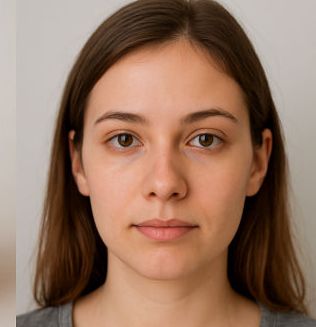
<img src="https://media.pixel-fiddler.com/{sourceAlias}/media/{imagePath}?cr.o=face"/>Parameters:
crop.object(alias:cr.o) - Type of object to crop around- Values:
face,upper_body
- Values:
Crop and Resize
Section titled “Crop and Resize”By default, cropping is applied before resizing the image. However, you can change this behavior using the crop.after_resize flag.
When this option is enabled, the crop is applied after the resize operation, allowing you to fine-tune the crop based on the final image dimensions. This is especially useful when you want the crop to adapt to the resized image rather than the original.